> ## Documentation Index
> Fetch the complete documentation index at: https://docs.namespace.ninja/llms.txt
> Use this file to discover all available pages before exploring further.
# Activate an ENS Name
> Activate your ENS name in the Namespace App to issue onchain subnames on Ethereum L1 or L2 chains like Base and Optimism.
To mint subnames from the Namespace App, ENS Widget, or via the SDK, you must first activate your ENS name from the Onchain section of the Namespace App.
Names activated on Ethereum L1 cannot be migrated to Namechain (ENS v2). If you plan to use Namechain, activate on a supported L2 (Base or Optimism) instead.
## How to Activate an ENS Name
1. Visit [app.namespace.ninja/onchain](https://app.namespace.ninja/onchain).
2. Connect the wallet that owns the ENS name you want to activate.
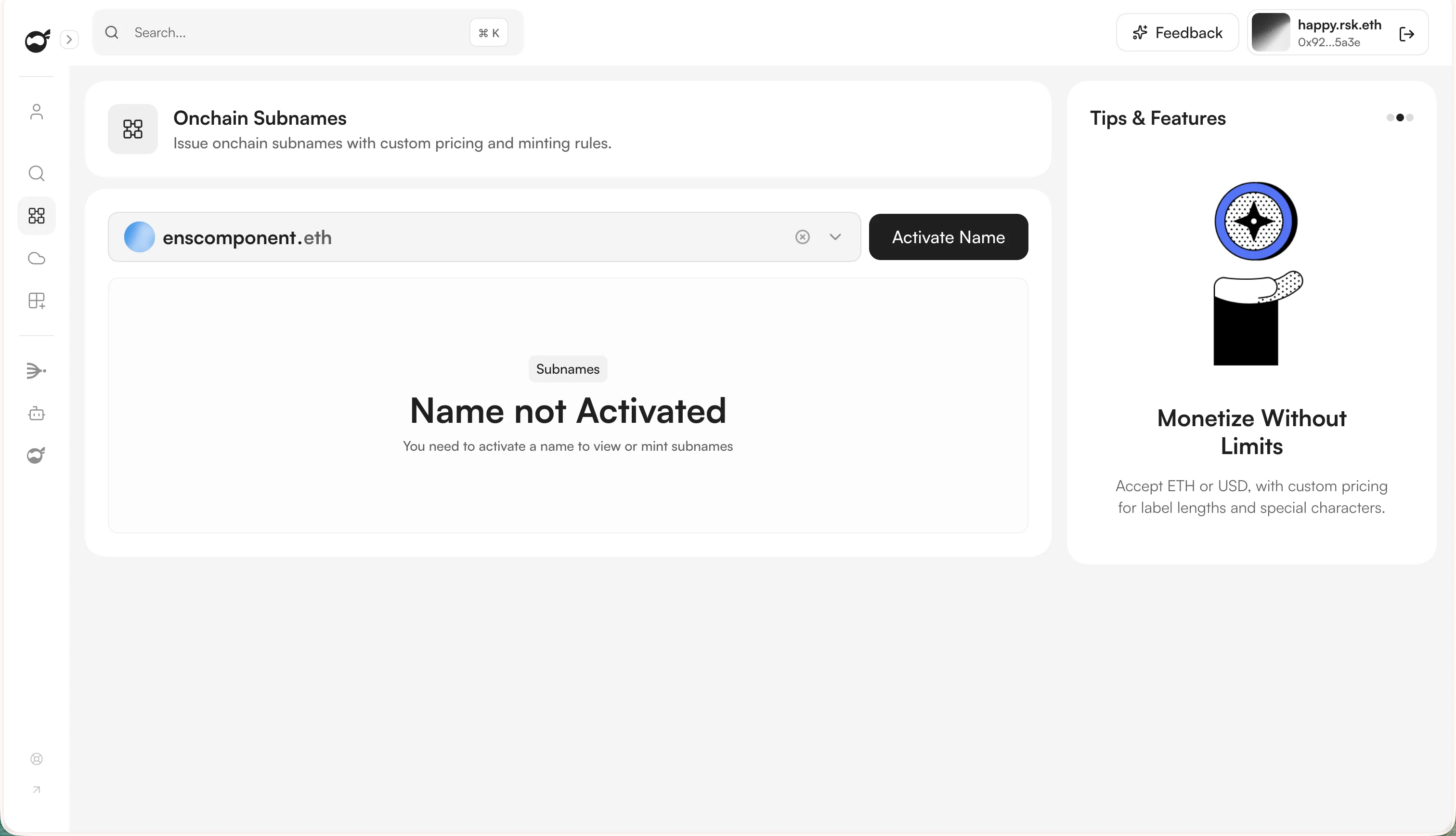
3. Select your ENS name from the dropdown at the top, then click **Activate Name**.
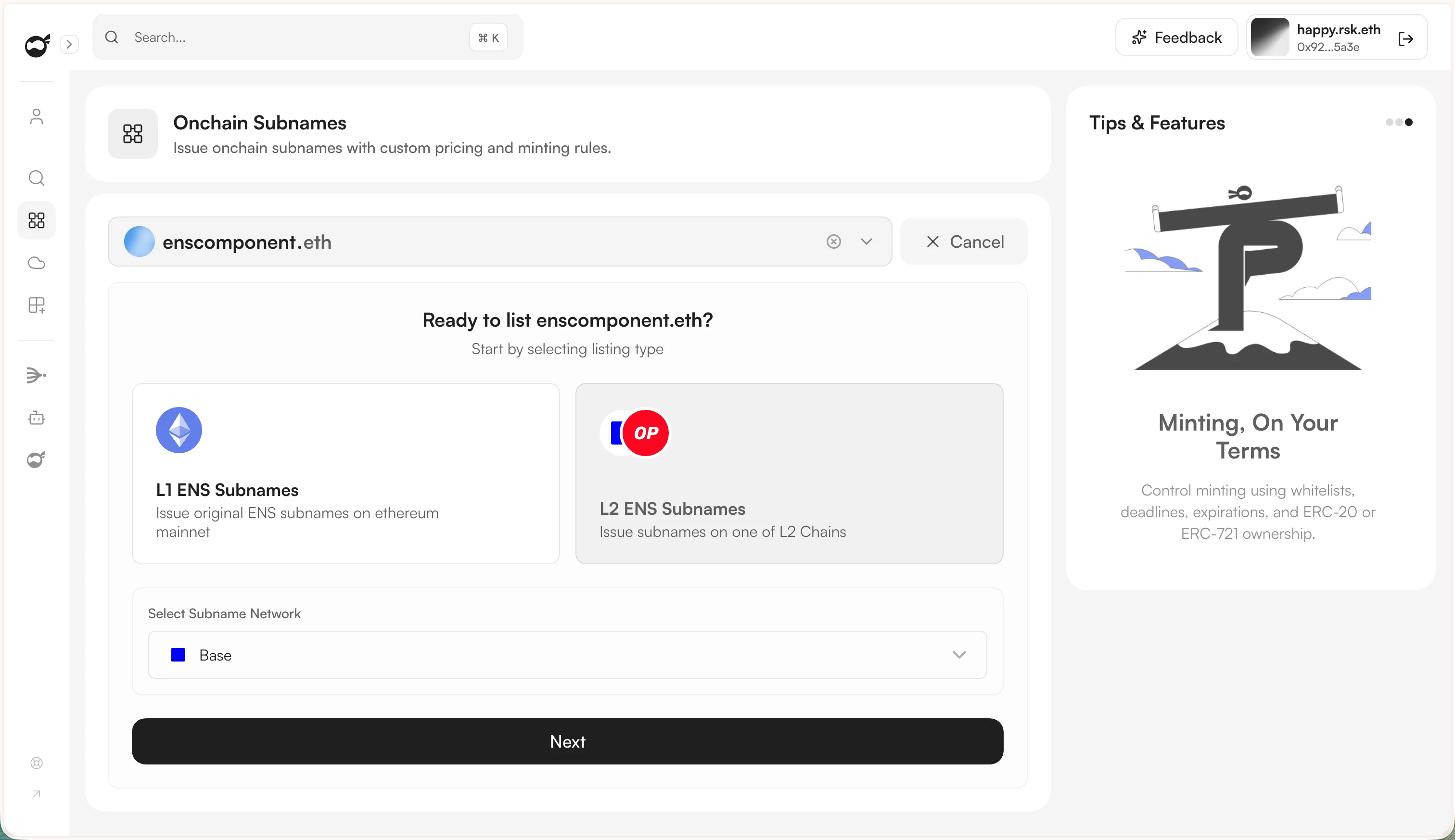
 Pick where subnames will be issued:
* **L1 ENS Subnames** — issue original ENS subnames on Ethereum mainnet.
* **L2 ENS Subnames** — issue subnames on a supported L2 chain (Base or Optimism). Pick the network from the "Select Subname Network" dropdown.
Click **Next**.
Pick where subnames will be issued:
* **L1 ENS Subnames** — issue original ENS subnames on Ethereum mainnet.
* **L2 ENS Subnames** — issue subnames on a supported L2 chain (Base or Optimism). Pick the network from the "Select Subname Network" dropdown.
Click **Next**.
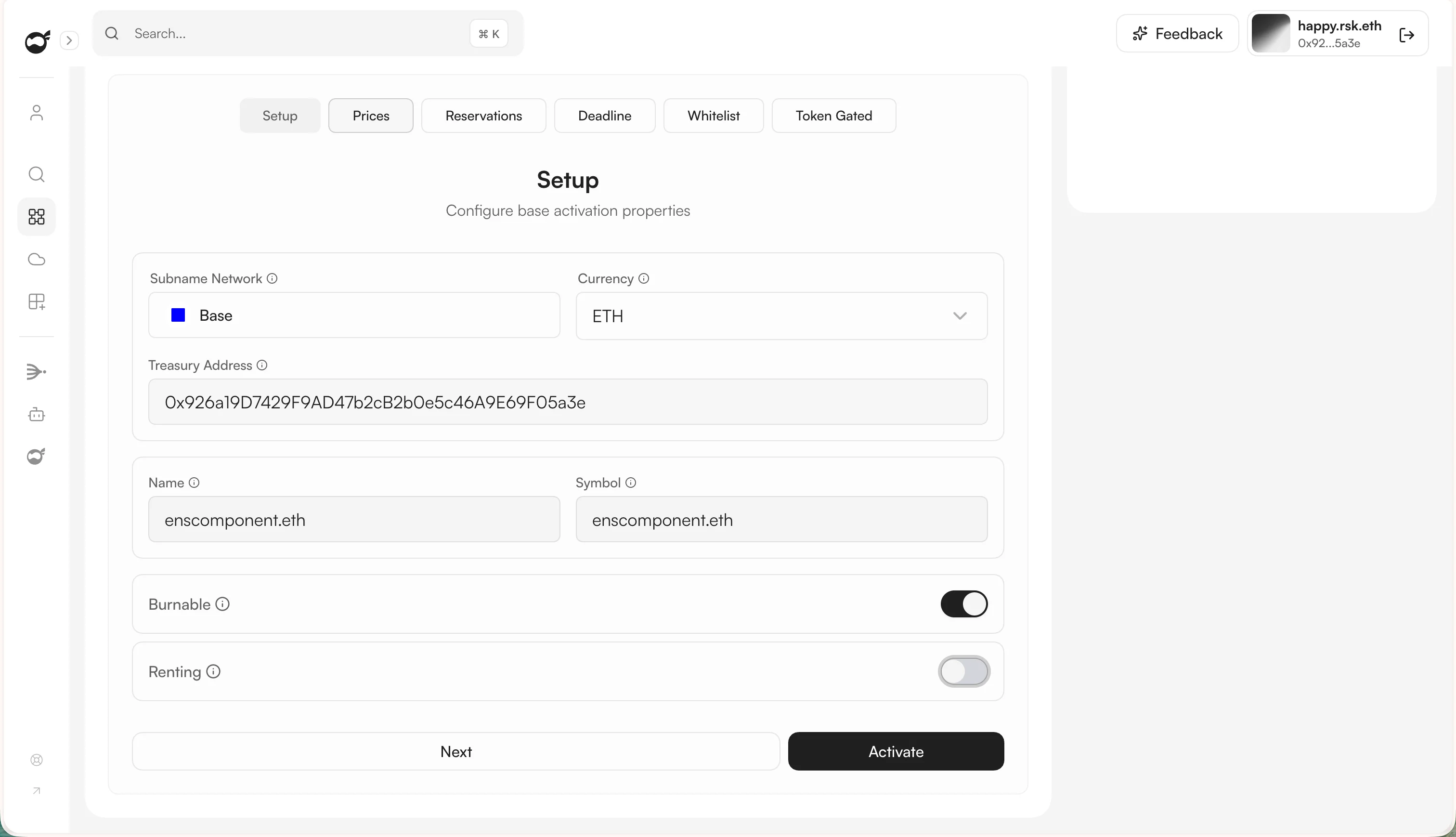
 Configure the collection:
* **Currency** — the token mint fees are collected in (e.g. ETH or USD).
* **Treasury Address** — wallet that receives mint revenue.
* **Name** and **Symbol** — collection metadata.
* **Burnable** — allow subname holders to burn their subname.
* **Renting** — allow time-bound subname rentals.
Configure the collection:
* **Currency** — the token mint fees are collected in (e.g. ETH or USD).
* **Treasury Address** — wallet that receives mint revenue.
* **Name** and **Symbol** — collection metadata.
* **Burnable** — allow subname holders to burn their subname.
* **Renting** — allow time-bound subname rentals.
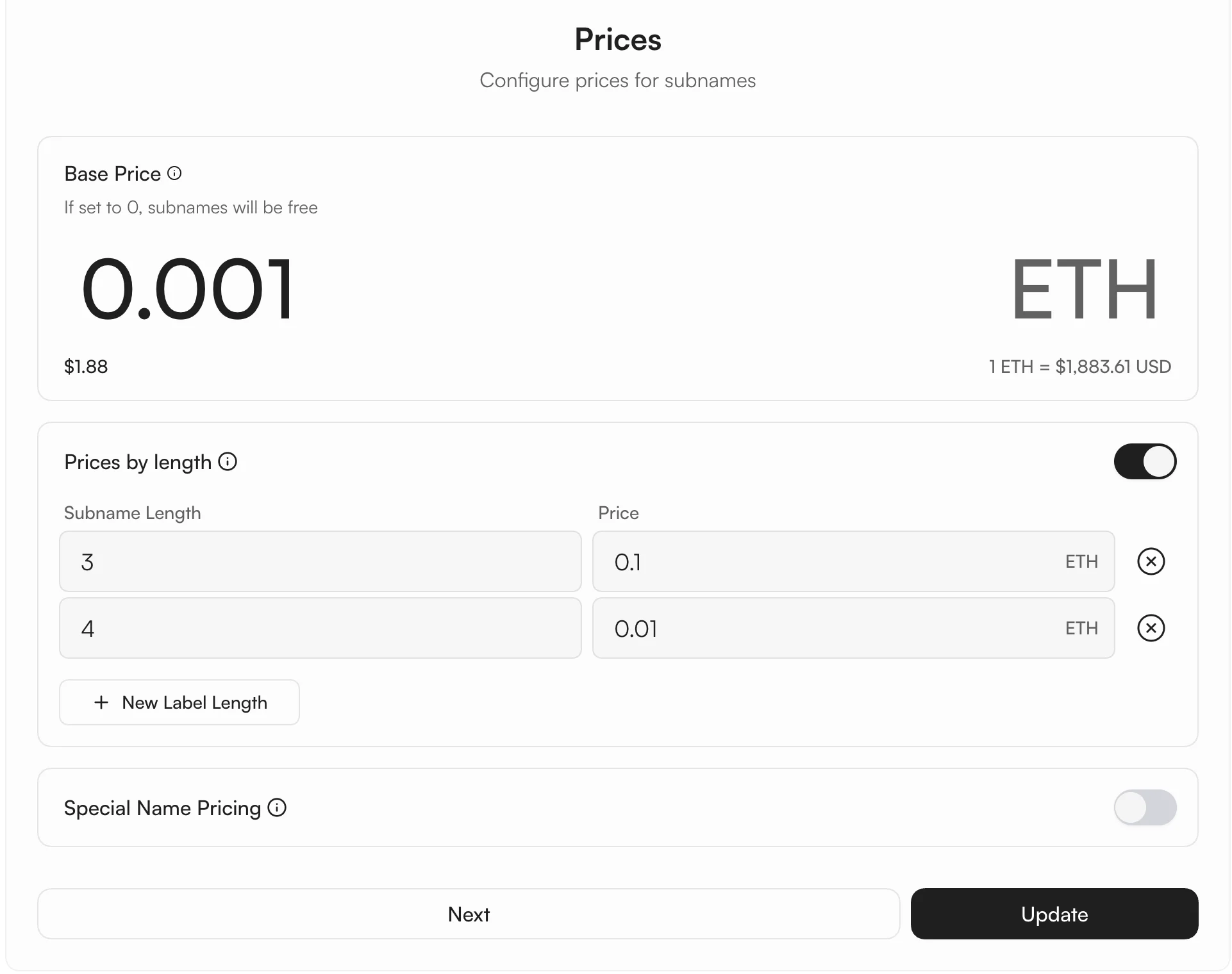
 Set how subnames are priced:
* **Base Price** — default price for every subname. Set to `0` to make subnames free.
* **Prices by length** — override price for specific subname lengths (e.g. 3-char names cost more).
* **Special Name Pricing** — custom rules for emoji-only, numbers-only, or other patterns.
Set how subnames are priced:
* **Base Price** — default price for every subname. Set to `0` to make subnames free.
* **Prices by length** — override price for specific subname lengths (e.g. 3-char names cost more).
* **Special Name Pricing** — custom rules for emoji-only, numbers-only, or other patterns.
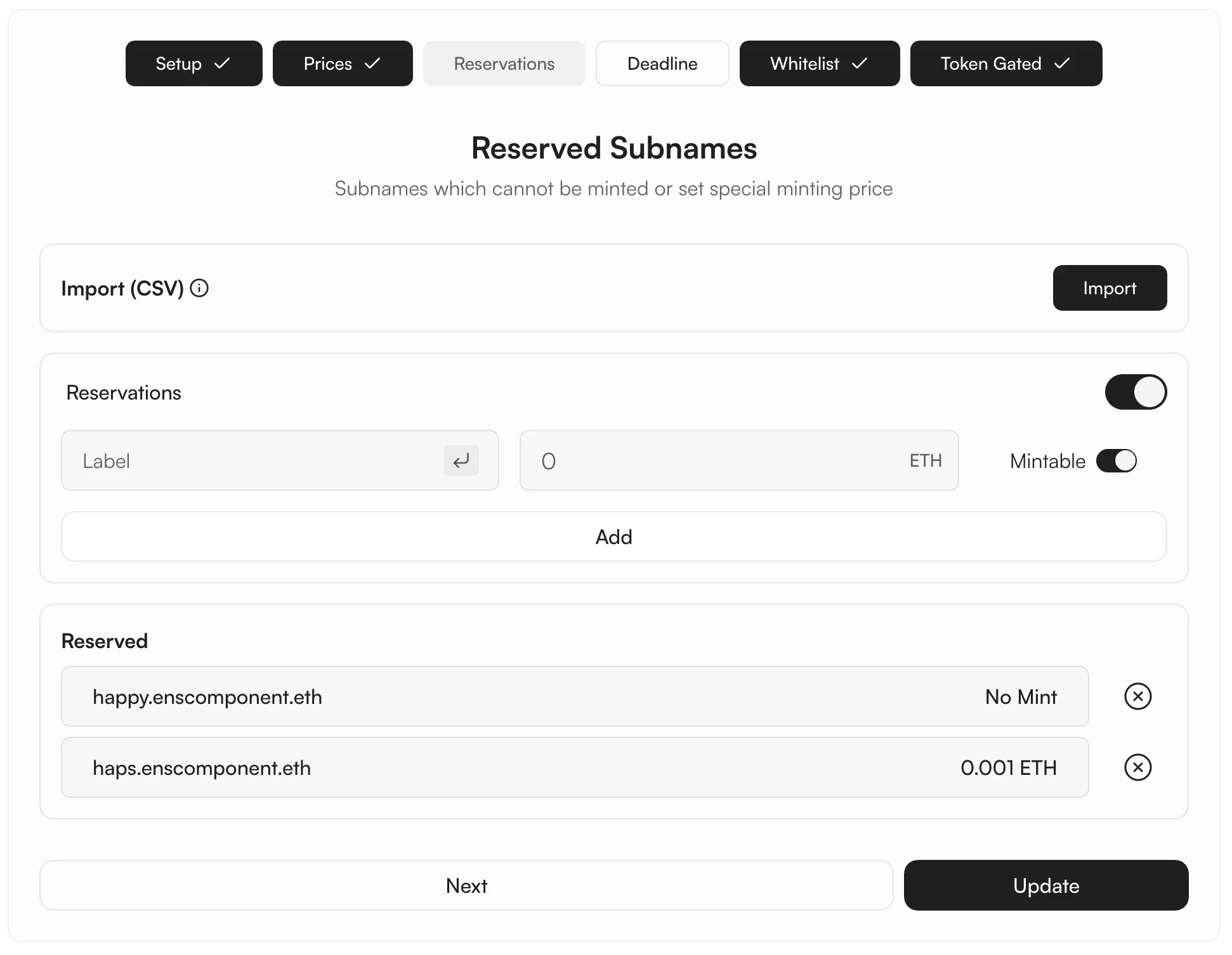
 Reserve subnames so they either cannot be minted at all (set **Mintable** off → "No Mint") or are minted at a specific price different from your base rules.
Add reservations one-by-one or bulk-import via CSV.
Reserve subnames so they either cannot be minted at all (set **Mintable** off → "No Mint") or are minted at a specific price different from your base rules.
Add reservations one-by-one or bulk-import via CSV.
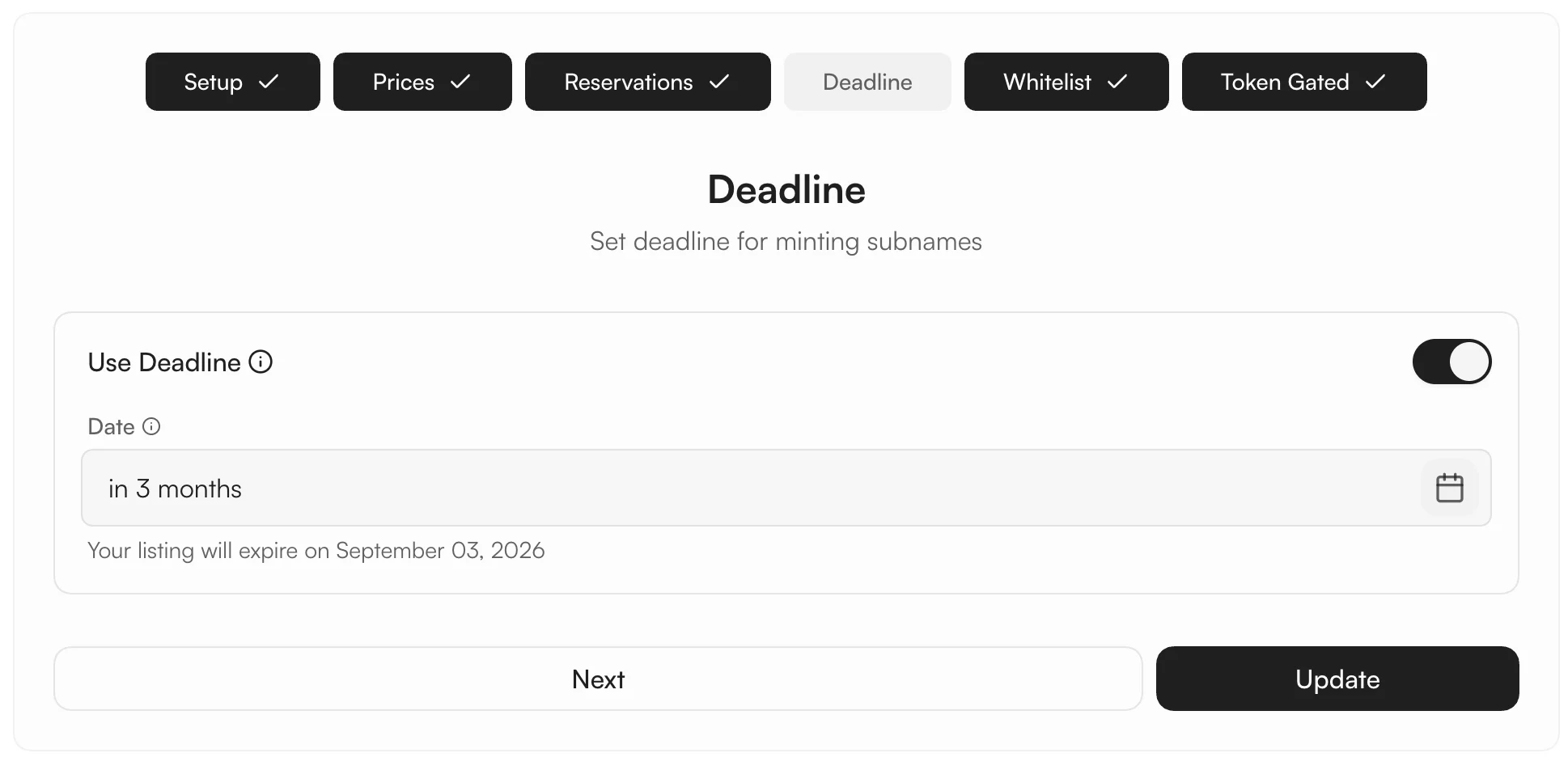
 Toggle **Use Deadline** to make the collection time-bound. After the chosen date, no new subnames can be minted.
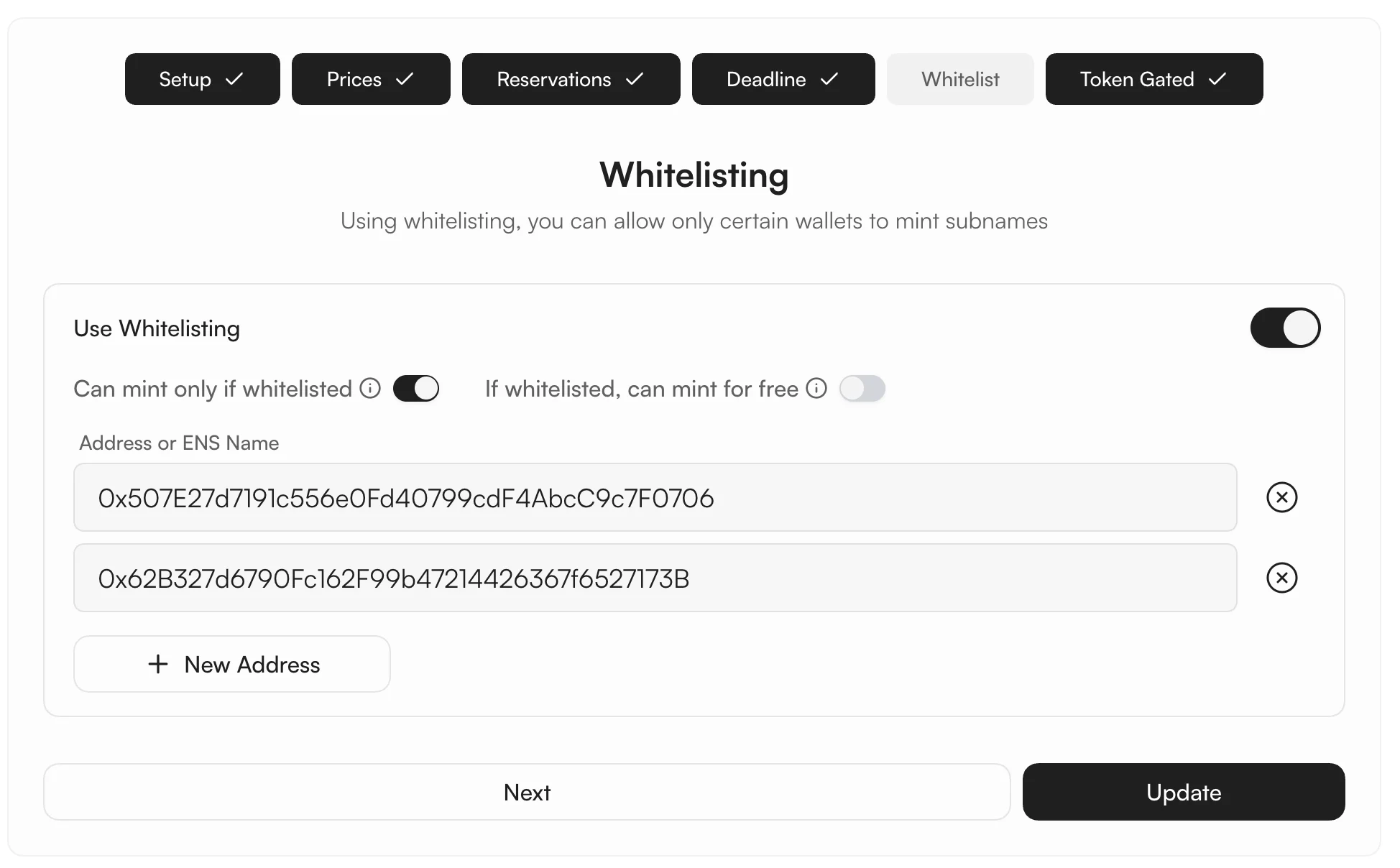
 Toggle **Use Whitelisting** to gate minting by wallet address. Two modes:
* **Can mint only if whitelisted** — restrict minting to listed wallets.
* **If whitelisted, can mint for free** — allowlisted wallets bypass the mint fee.
Add addresses or ENS names one-by-one.
Toggle **Use Whitelisting** to gate minting by wallet address. Two modes:
* **Can mint only if whitelisted** — restrict minting to listed wallets.
* **If whitelisted, can mint for free** — allowlisted wallets bypass the mint fee.
Add addresses or ENS names one-by-one.
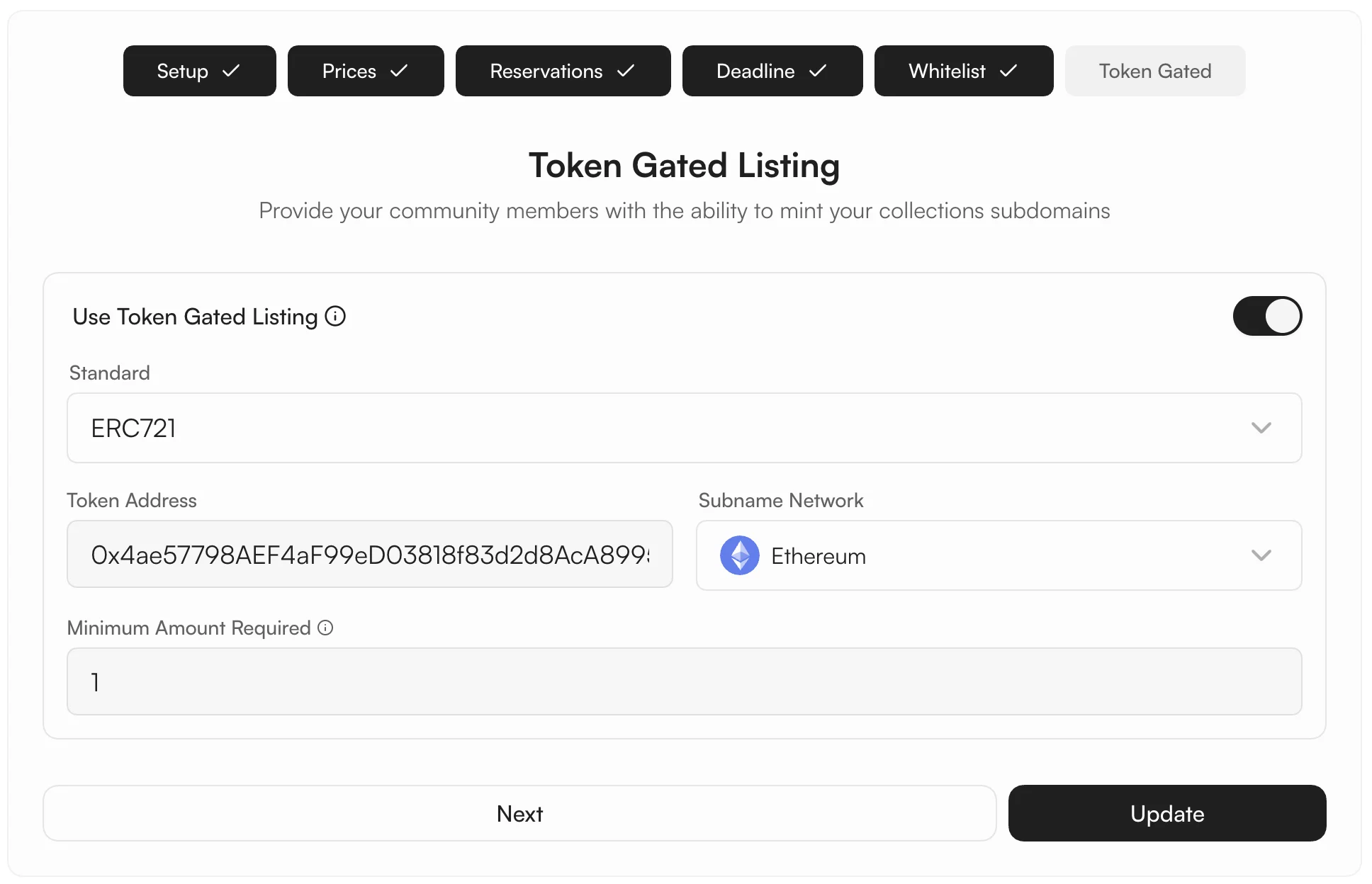
 Toggle **Use Token Gated Listing** to require that minters hold a specific token:
* **Standard** — ERC-20 or ERC-721.
* **Token Address** — contract address of the gating token.
* **Subname Network** — the chain the token lives on.
* **Minimum Amount Required** — minimum balance the wallet must hold to be eligible.
Toggle **Use Token Gated Listing** to require that minters hold a specific token:
* **Standard** — ERC-20 or ERC-721.
* **Token Address** — contract address of the gating token.
* **Subname Network** — the chain the token lives on.
* **Minimum Amount Required** — minimum balance the wallet must hold to be eligible.
 Once all tabs are configured, click **Activate**. Sign the transaction in your wallet.
**L1 activation** also requires wrapping your ENS name into a NameWrapper-compatible name. The app prompts for this wrap transaction automatically. This step is skipped for L2 activations.
After activation, the app shows a "Few more steps before you can list your name" screen with two actions.
Click **Deploy Registry** to deploy the Registry Contract on the selected L2 chain. This contract holds all subnames issued under your name.
Once all tabs are configured, click **Activate**. Sign the transaction in your wallet.
**L1 activation** also requires wrapping your ENS name into a NameWrapper-compatible name. The app prompts for this wrap transaction automatically. This step is skipped for L2 activations.
After activation, the app shows a "Few more steps before you can list your name" screen with two actions.
Click **Deploy Registry** to deploy the Registry Contract on the selected L2 chain. This contract holds all subnames issued under your name.
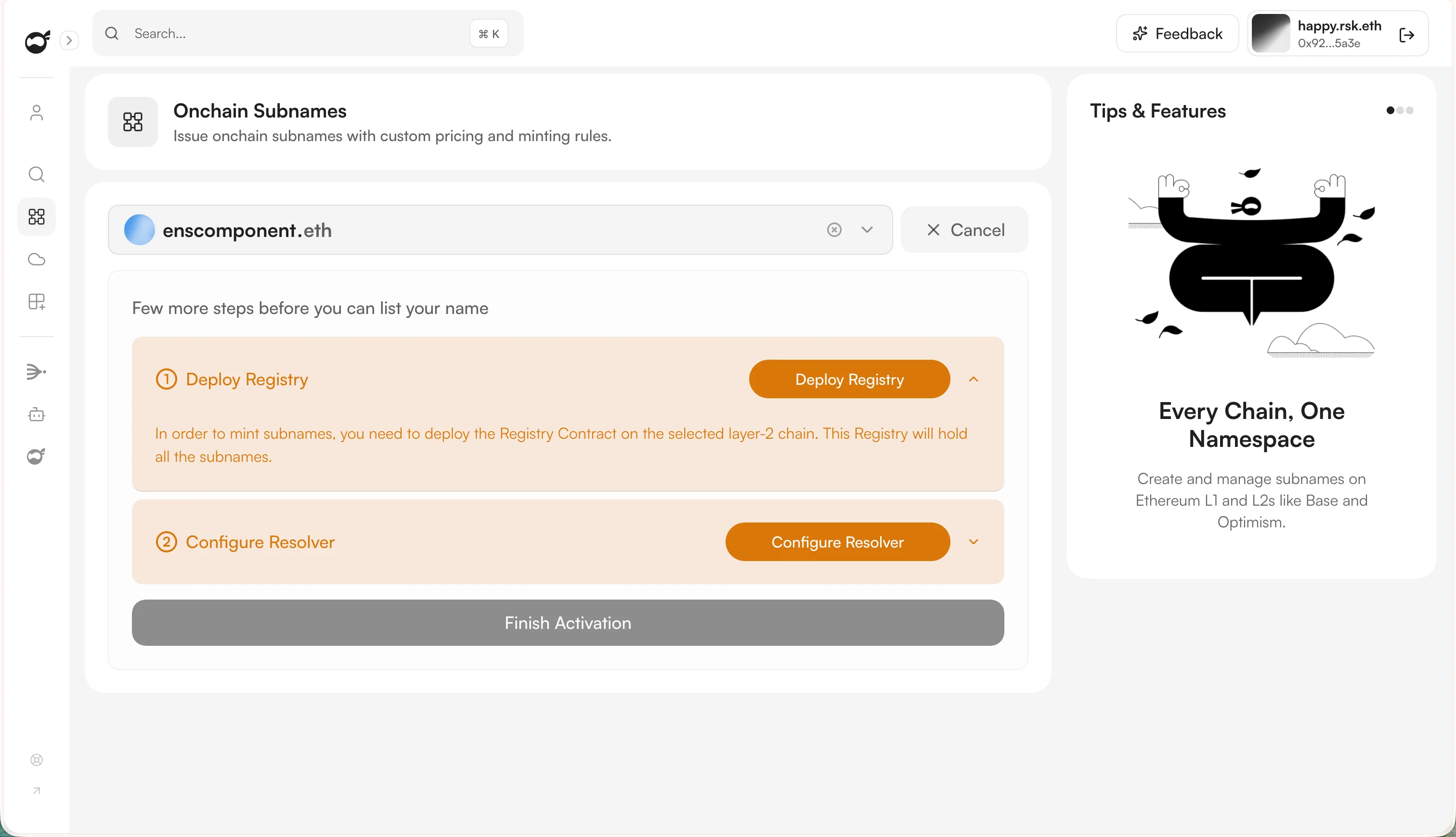 Click **Configure Resolver** to point your ENS name's resolver at the Namespace Hybrid Resolver. This is what makes subnames resolvable across the entire Web3 ecosystem.
Confirm the transaction in your wallet.
Click **Configure Resolver** to point your ENS name's resolver at the Namespace Hybrid Resolver. This is what makes subnames resolvable across the entire Web3 ecosystem.
Confirm the transaction in your wallet.
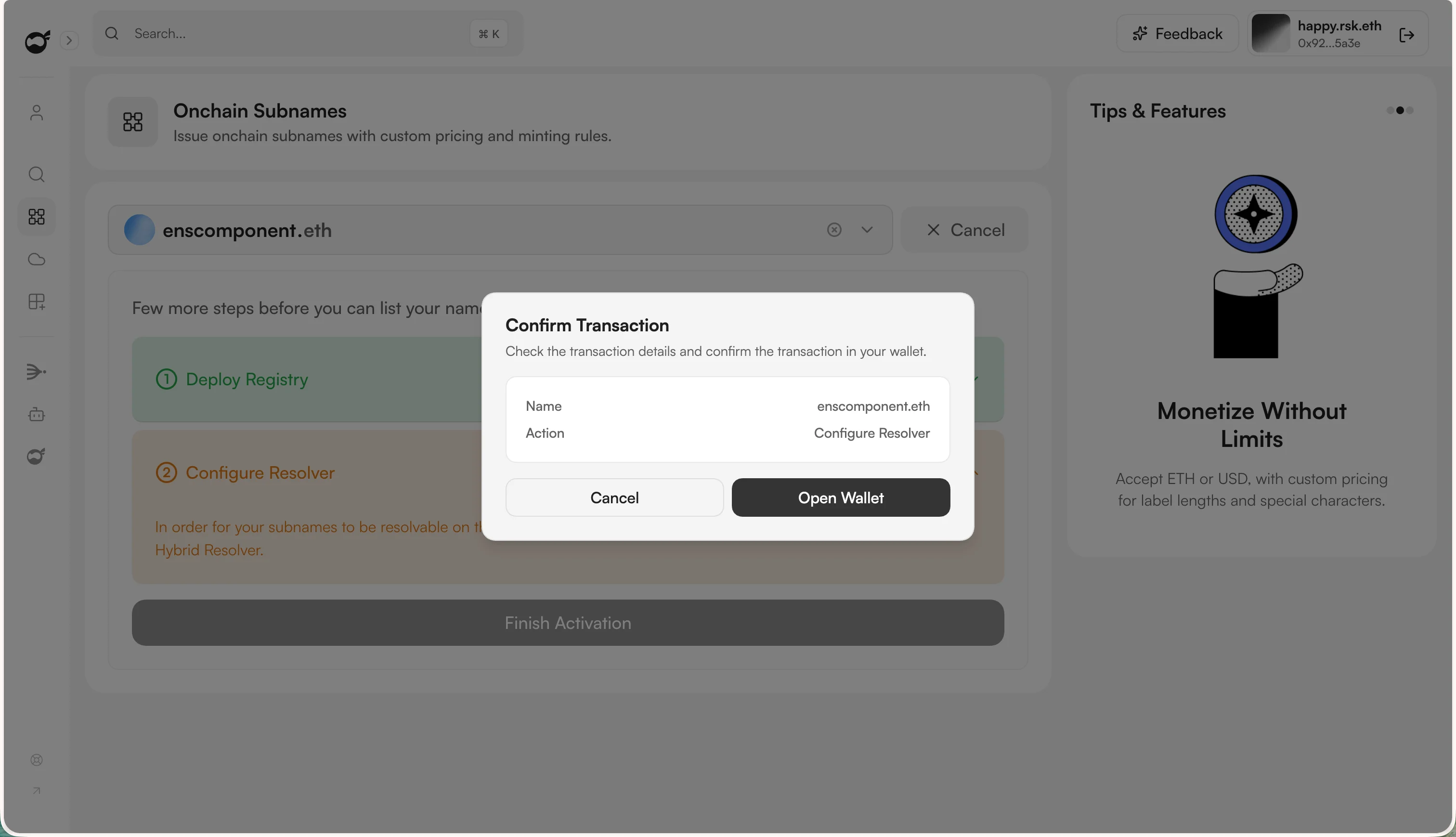 Click **Finish Activation**. Your ENS name now shows an **Activated** badge, and you can start minting subnames from the same page or via the SDK / widget.
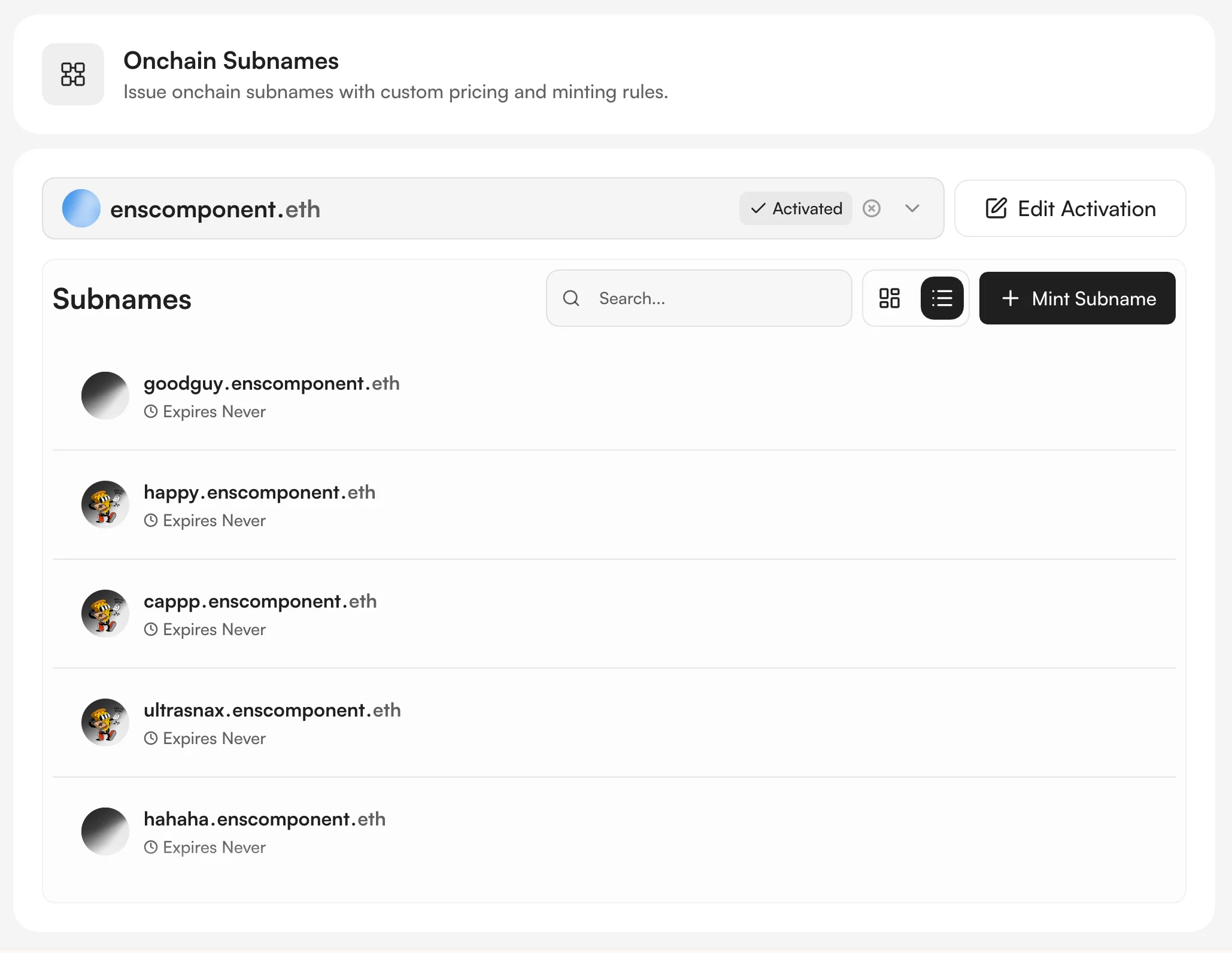 You can revisit any tab later via **Edit Activation** — pricing, reservations, deadline, whitelist, and token gating can all be updated after activation.
***
## Next Steps
Your ENS name is now activated and ready for subname minting. Choose how to get started:
Mint subnames directly from the Namespace App.
Embed a widget in your app to let users mint subnames.
Launch a branded minting site quickly using our ready-made template.
Learn best practices for minting subnames on L1 and L2.
For advanced automation or custom flows, explore the [Mint Manager SDK](/developer-guide/sdks/mint-manager).
You can revisit any tab later via **Edit Activation** — pricing, reservations, deadline, whitelist, and token gating can all be updated after activation.
***
## Next Steps
Your ENS name is now activated and ready for subname minting. Choose how to get started:
Mint subnames directly from the Namespace App.
Embed a widget in your app to let users mint subnames.
Launch a branded minting site quickly using our ready-made template.
Learn best practices for minting subnames on L1 and L2.
For advanced automation or custom flows, explore the [Mint Manager SDK](/developer-guide/sdks/mint-manager).